Is your computer taking too long to start? Does Windows feel slow every time you boot your PC?
One of the most common reasons for slow startup is too many programs launching automatically when Windows starts. These are called startup programs. When you install software, many applications add themselves to startup by default. If too many apps run at boot, your system takes longer to load.
In this guide, you’ll learn how to disable unnecessary startup programs and speed up your Windows PC safely.
Why Too Many Startup Programs Slow Down Your PC
When Windows boots:
- Startup apps load into memory
- Background services begin running
- Drivers initialize
- Internet-based apps check for updates
The more programs you allow to start automatically, the slower your computer becomes. Not every startup program is necessary.
However, you must be careful not to disable essential system drivers.
Do NOT disable:
- Audio drivers
- Graphics drivers
- WiFi / Bluetooth drivers
- Touchpad drivers
- Antivirus software
You can safely disable:
- Chat applications
- Game launchers
- Software updaters
- Cloud sync tools (if not required)
- Media players
Only disable apps you recognize.
How to Disable Startup Programs in Windows 10 & Windows 11
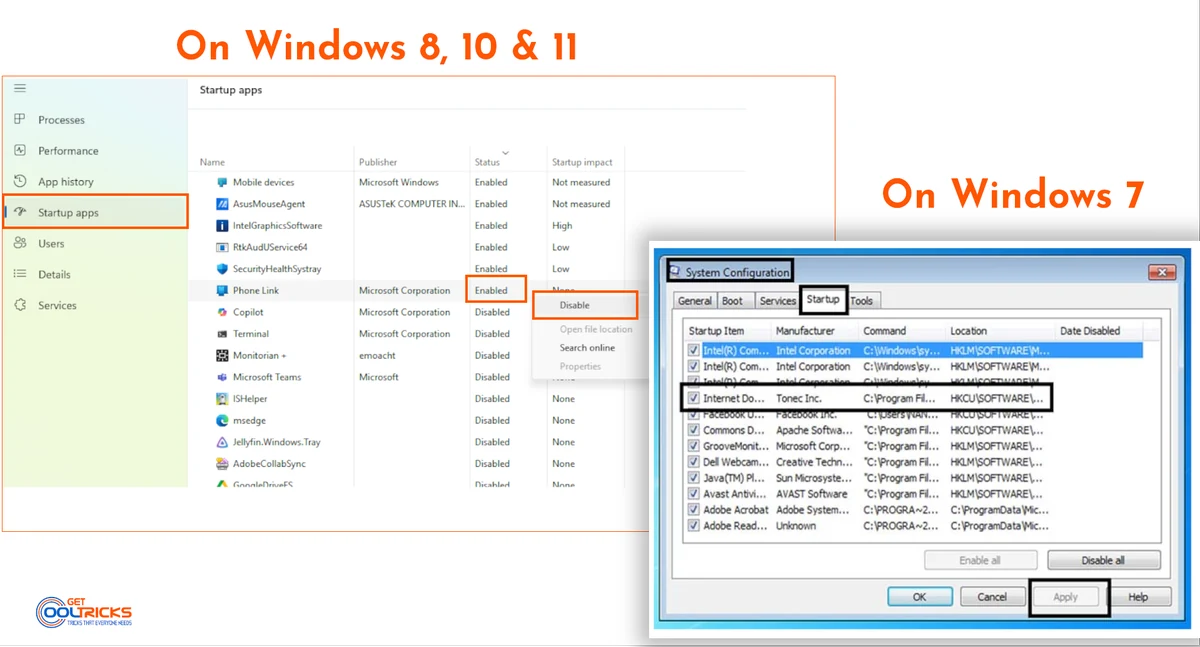
In modern versions of Windows, startup settings are managed in Task Manager.
- Right-click the Taskbar.
- Click Task Manager.
- If it shows basic view, click More details.
- Go to the Startup apps tab.
- Review the list of programs.
- Right-click any unnecessary app.
- Click Disable.
You can also see the “Startup impact” column, which shows how much each app affects boot time.
After disabling unwanted apps, restart your computer to see the improvement.
How to Disable Startup Programs in Windows 8
- Press Ctrl + Shift + Esc to open Task Manager.
- Click More details.
- Go to the Startup tab.
- Select unnecessary applications.
- Click Disable.
The process is similar to Windows 10 and 11.
How to Disable Startup Programs in Windows 7
In Windows 7, startup management is done using System Configuration.
- Press Windows key + R.
- Type:
msconfig - Press Enter.
- Go to the Startup tab.
- Uncheck unnecessary programs.
- Click Apply.
- Click Exit without restart (or restart later).
The disabled programs will no longer start automatically.
Additional Tips to Improve Startup Speed
Disabling startup programs is the most effective step, but you can also:
- Upgrade from HDD to SSD (huge improvement)
- Reduce background services
- Keep Windows updated
- Remove unused software
- Check for malware
If your PC is still slow after disabling startup apps, your system may require hardware upgrades such as upgrading to an SSD or adding more RAM. You may also want to check and fix disk errors in Windows, as drive issues can affect boot time and overall performance. In some cases, reinstalling the Windows operating system may help restore better performance.
If your computer takes too long to start, startup programs are usually the main reason. By disabling unnecessary apps from launching with Windows, you can significantly reduce boot time and improve overall performance. Make sure to disable only non-essential programs and keep system drivers active. After restarting your computer, you should notice a faster startup experience.