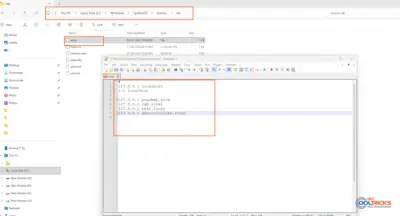
Connected to WiFi but no internet access? You’ll see the WiFi icon, but websites won’t load. In most cases, it’s a small network issue.
It’s quite common in Windows 11, and usually easy to fix.
Quick Fix (Try This First)
Before trying anything else:
- Turn WiFi OFF and ON
- Restart your router
- Restart your PC
Sometimes that’s all it takes.
Fix: Use Diagnose Network Problems (Quick Method)
Windows 11 has a built-in tool that can fix this automatically.
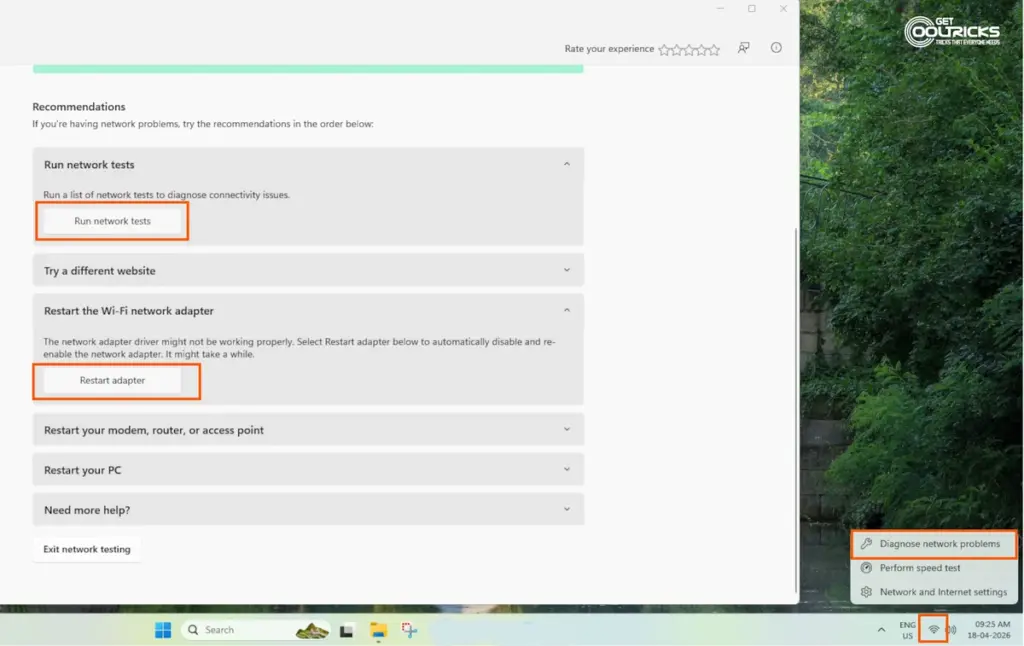
- Right-click the WiFi icon in the taskbar
- Click Diagnose network problems
- Follow the suggestions shown
You’ll see options like:
- Run network tests
- Restart the WiFi adapter
This is usually the first thing I try. The “Restart adapter” option fixes it most of the time.
Fix 2: Forget and Reconnect WiFi
- Go to Settings → Network & Internet → WiFi
- Click Manage known networks
- Select your WiFi → click Forget
- Connect again
Fix 3: Reset Network Settings
- Go to Settings → Network & Internet → Advanced network settings
- Click Network reset
- Click Reset now
- Restart your PC
Fix 4: Check IP Settings
Method 1 (Classic way)
- Press Win + R, type
ncpa.cpl - Right-click your WiFi → Properties
- Double-click Internet Protocol Version 4 (IPv4)
Make sure:
- Make sure the IP address is set to automatic
- Also, ensure the DNS server is set to automatic
Method 2 (Windows 11 Settings)
- Go to Settings → Network & Internet → WiFi
- Click your connected network
- Find IP assignment → click Edit
- Set it to Automatic (DHCP)
Do the same for:
- DNS server assignment → Automatic
Fix 5: Flush DNS
Open Command Prompt as Administrator and run:
ipconfig /flushdns
ipconfig /release
ipconfig /renew
Fix 6: Update Network Driver
- Right-click Start → Device Manager
- Expand Network adapters
- Update your WiFi driver
Fix 7: Check Other Devices
- If the internet doesn’t work on other devices → router/ISP issue
- If only your PC has an issue → Windows problem
Common Causes
- Router issue
- DNS problem
- IP conflict
- Driver issues
- Windows update bugs
Final Thoughts
This issue looks serious, but it’s usually just a small network glitch. Start with the built-in troubleshooter—it often fixes the problem in seconds.