If you’re planning a clean install or upgrading your PC, the first step is getting a proper copy of Windows 11.
One thing I’ve consistently recommended since starting GetCoolTricks: avoid downloading Windows ISOs from unofficial websites. Many of those “optimized” versions come with hidden modifications — sometimes even malware or broken system files.
The safest option is to download Windows directly from Microsoft. Here are the steps to do it properly.
Method 1: Download Windows 11 ISO Directly (Recommended)
This is usually the best approach. You get a clean ISO file that you can store, reuse, or turn into a bootable USB whenever you need.
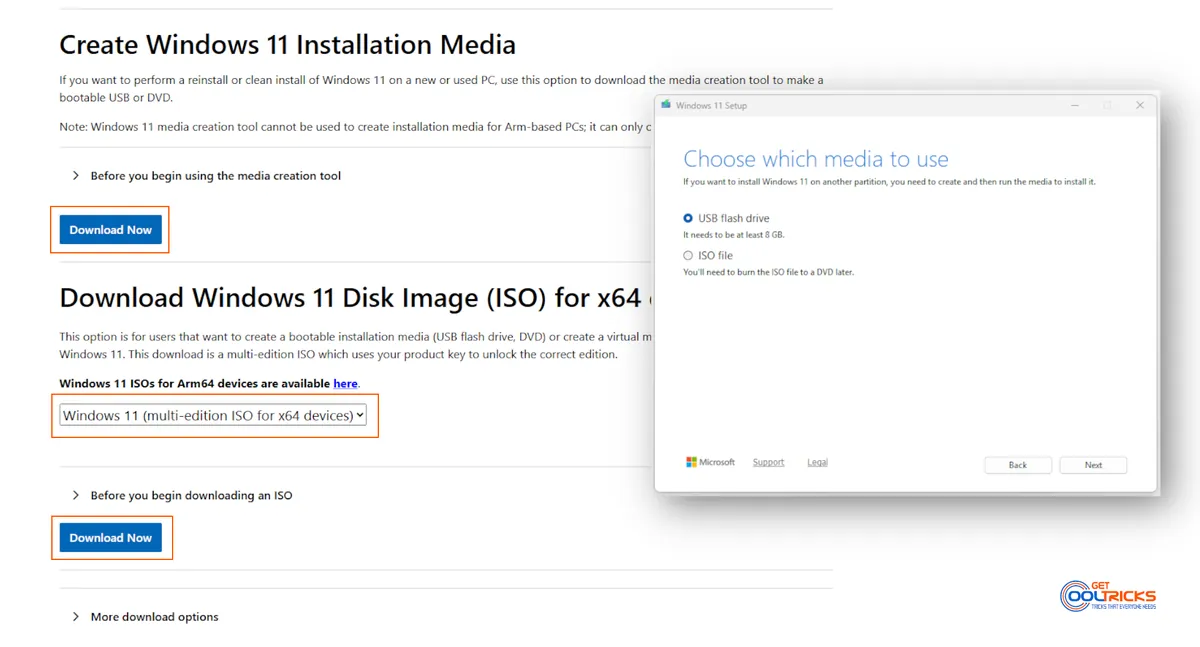
- Visit the official Microsoft Windows 11 Download Page.
- Scroll to “Download Windows 11 Disk Image (ISO)”.
- Select Windows 11 (multi-edition ISO) and click Download.
- Choose your language (make sure it matches your license)
- Click Confirm, then select the 64-bit Download button.
Important Notes for the Download:
Here are a few things worth keeping in mind while downloading:
- The file is quite large — usually somewhere around 5 to 6 GB — so the download may take a while depending on your internet speed.
- The download link doesn’t stay active forever. It usually expires after a day, so if the download fails midway, you might need to generate a new one.
- The ISO itself includes both Home and Pro editions. You don’t have to worry about picking the exact version at this stage.
- If your system already has a digital license, Windows will activate automatically once you’re connected to the internet. No need to enter a key again.
Method 2: Use the Media Creation Tool
If you just want a ready-to-use USB drive without dealing with ISO files manually, this method is easier. Here are the steps to use the tool.
- On the same Microsoft page, find Create Windows 11 Installation Media
- Click Download now
- Run the tool and accept the terms
- Choose your language and edition
- Select USB flash drive (minimum 8 GB)
- Let the tool download and prepare the USB
A Quick Note: The Media Creation Tool works well most of the time, but it doesn’t always handle interruptions properly. If your internet connection drops, the download may restart. If your connection is slow or unstable, the ISO method (Method 1) is recommended.
Before You Start: Check System Requirements
Windows 11 has stricter requirements compared to older versions, so it’s worth checking before you begin.
- Processor– 1 GHz or faster with 2 or more cores on a compatible 64-bit processor.
- Memory– At least 4 GB RAM (though 8GB is much better for actual use).
- Storage– 64 GB or larger storage device.
- Security– TPM version 2.0 and Secure Boot must be enabled in your BIOS.
If you’re unsure, you can run Microsoft’s PC Health Check tool to confirm compatibility.
What to Do After Downloading the ISO
Once the ISO file is downloaded, you can use it in a few different ways depending on what you’re trying to do.
If you’re planning to do a clean installation, you can create a bootable USB using a tool like Rufus and install Windows from scratch. If you want to upgrade your PC, simply mount the ISO and run the setup.exe file.
You can use the same ISO to repair Windows. Booting from the ISO to access the recovery options, like Startup Repair.
Another option is to use it in a virtual machine. Tools like VMware or VirtualBox allow you to run Windows 11 without affecting your main system.
Pro Tip
Before making any major changes, take a backup of your data. Things usually go smoothly, but if something goes wrong, a backup gives you peace of mind.
Final Thoughts
It’s always better to download Windows directly from the official site. Whether you go with the ISO or the Media Creation Tool, you’ll be working with a clean and reliable setup.