Hard disk errors and bad sectors can cause slow performance, file corruption, and system crashes. If your computer is freezing, showing disk warnings, or failing to boot properly, your storage drive may have issues.
This guide explains how to check and fix disk errors in Windows using built-in tools and reliable diagnostic utilities. It also explains the important difference between HDD and SSD failures.
Understand the Type of Disk Problem
Not all disk problems are the same.
Logical Errors (Fixable)
Logical errors are file system issues caused by:
- Improper shutdown
- Power failure
- Software crashes
- Malware
These issues can usually be fixed using Windows tools like CHKDSK.
Physical Bad Sectors (Not Truly Repairable)
Physical bad sectors occur due to:
- Physical damage
- Aging hardware
- Mechanical wear (HDD)
Software cannot physically repair damaged sectors. It can only mark them as unusable so Windows avoids storing data there.
If bad sectors continue increasing, the drive should be replaced.
SSD Wear and Health Issues
SSDs behave differently from traditional hard drives.
Instead of developing physical bad sectors like HDDs, SSDs:
- Remap failing memory cells automatically
- Track wear using SMART data
- Degrade based on write cycles
If an SSD shows failure warnings, replacement is the safest solution.
Method 1: Use Windows Error Checking Tool
Windows includes a built-in disk error checking utility.
Steps to Run Error Checking
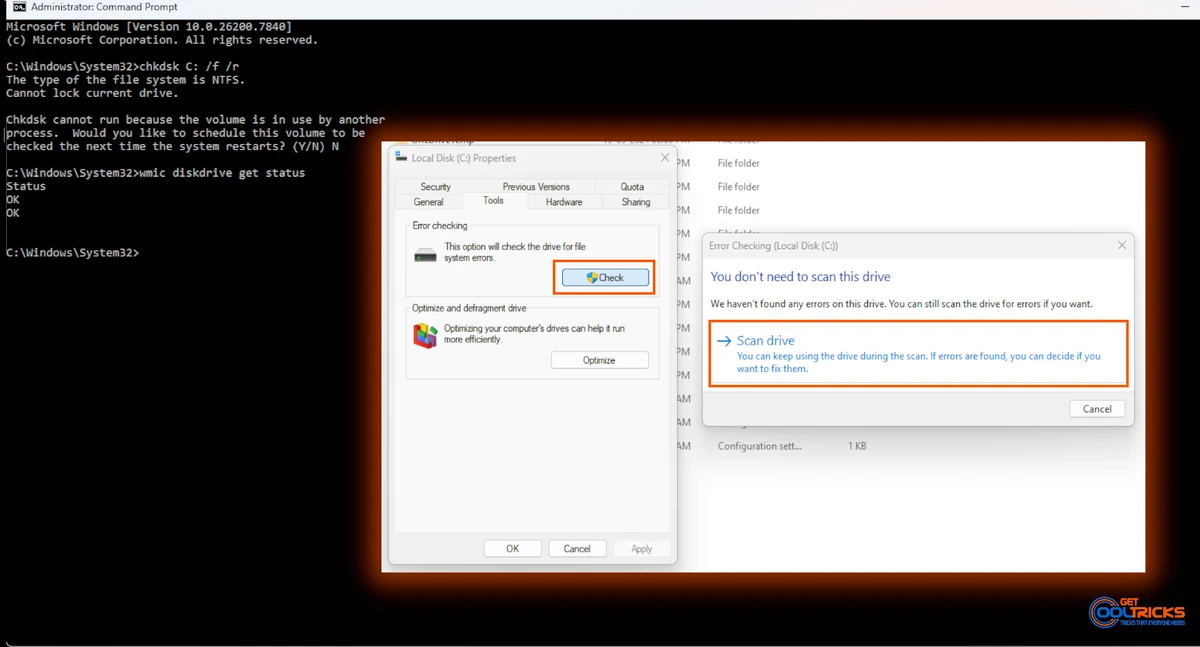
- Open File Explorer
- Right-click the drive (e.g., C:)
- Click Properties
- Go to the Tools tab
- Click Check under Error checking
Windows will scan the drive and attempt to fix logical file system errors.
Method 2: Run CHKDSK Command (Advanced Scan)
For deeper scanning, use Command Prompt.
Run CHKDSK with Repair
- Open Command Prompt as Administrator
- Type:
chkdsk C: /f /rReplace C: with the correct drive letter.
/ffixes file system errors/rlocates bad sectors and attempts readable data recovery
If scanning the system drive, Windows may schedule the scan for the next restart.
What to Do If CHKDSK Says “Cannot Lock Current Drive”
While running CHKDSK, you may see a message saying the drive is in use and cannot be locked. This is normal.
Simply type: Y. Press Enter and restart your computer.
CHKDSK will run automatically before Windows fully loads.
Method 3: Check Drive Health Using SMART Status
Modern drives support SMART (Self-Monitoring, Analysis and Reporting Technology).
Check SMART Status in Command Prompt
Open Command Prompt and run:
wmic diskdrive get statusIf it shows “OK,” the drive is currently healthy.
If it reports failure or unknown status, back up your data immediately.
For deeper SMART details, manufacturer tools are recommended.
Method 4: Use Manufacturer Diagnostic Tools
Drive manufacturers provide official diagnostic software.
For Western Digital Drives
Use WD Drive Utilities.
For Seagate Drives
Use SeaTools.
These tools perform hardware-level testing and provide detailed SMART analysis.
They are more reliable than generic tools for brand-specific drives.
Method 5: Surface Scan Tools (Detection Only)
Surface scanning tools can detect bad sectors but cannot physically repair them.
Common tools include:
These tools are useful mainly for traditional HDDs.
For SSDs, SMART monitoring is more meaningful than surface scans.
When You Should Replace the Drive
Replace your drive immediately if:
- SMART shows failure warnings
- Reallocated sector count increases regularly
- The drive makes clicking or grinding noises (HDD)
- System freezes during disk activity
- Read/write speeds drop drastically
No software can permanently fix hardware failure.
Prevent Disk Failures
To reduce disk-related problems:
- Shut down Windows properly
- Avoid sudden power cuts (use a UPS if possible)
- Monitor SMART status regularly
- Keep at least 15–20% free space
- Back up important data frequently
For additional protection, consider using Windows Storage Spaces or regular external backups.
Disk errors in Windows are often caused by logical file system corruption, which can be fixed using built-in tools like Error Checking and CHKDSK. However, physical bad sectors and SSD wear cannot be permanently repaired with software.
If your drive shows hardware failure signs, back up your data immediately and replace the drive. Early detection is the best way to prevent permanent data loss.