If you’ve ever searched for a way to block a website, test a website before changing DNS, or fix a domain that points to the wrong server, you’ve probably come across the Windows hosts file.
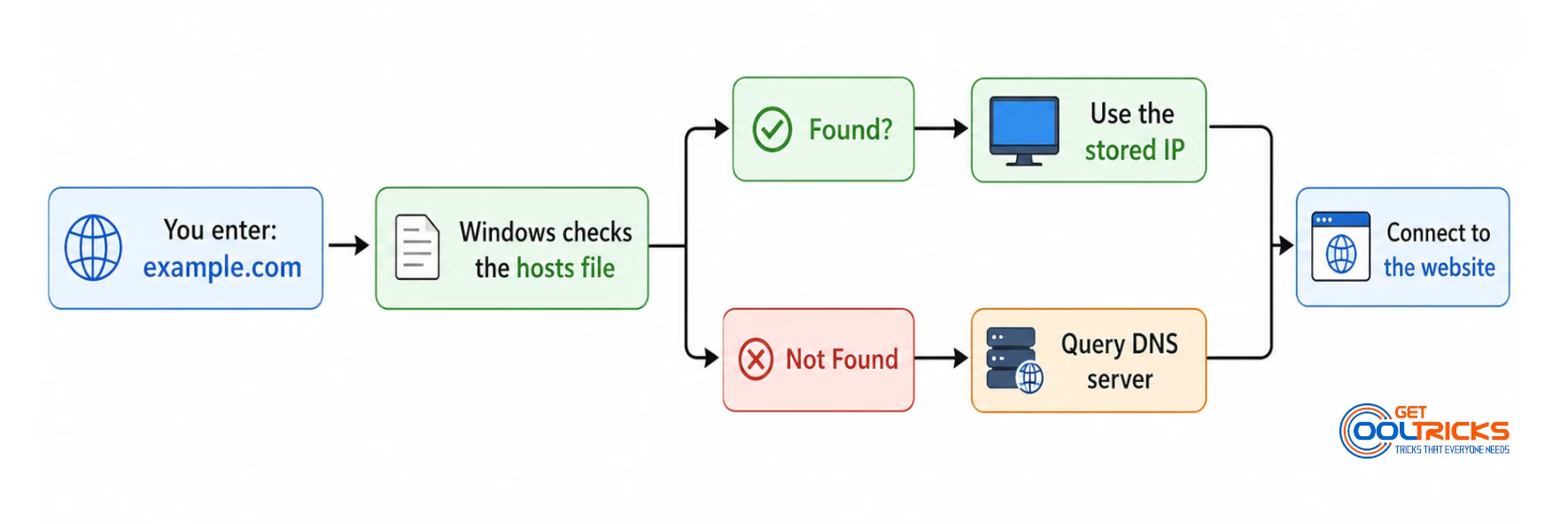
The hosts file is a small text file that lets you manually map a domain name to an IP address. Before Windows asks a DNS server for a website’s location, it checks this file first. If it finds a matching entry, it uses that instead.
Although most users never need to touch it, the hosts file is still useful for developers, website owners, and anyone troubleshooting network issues.
Where Is the Hosts File Located?
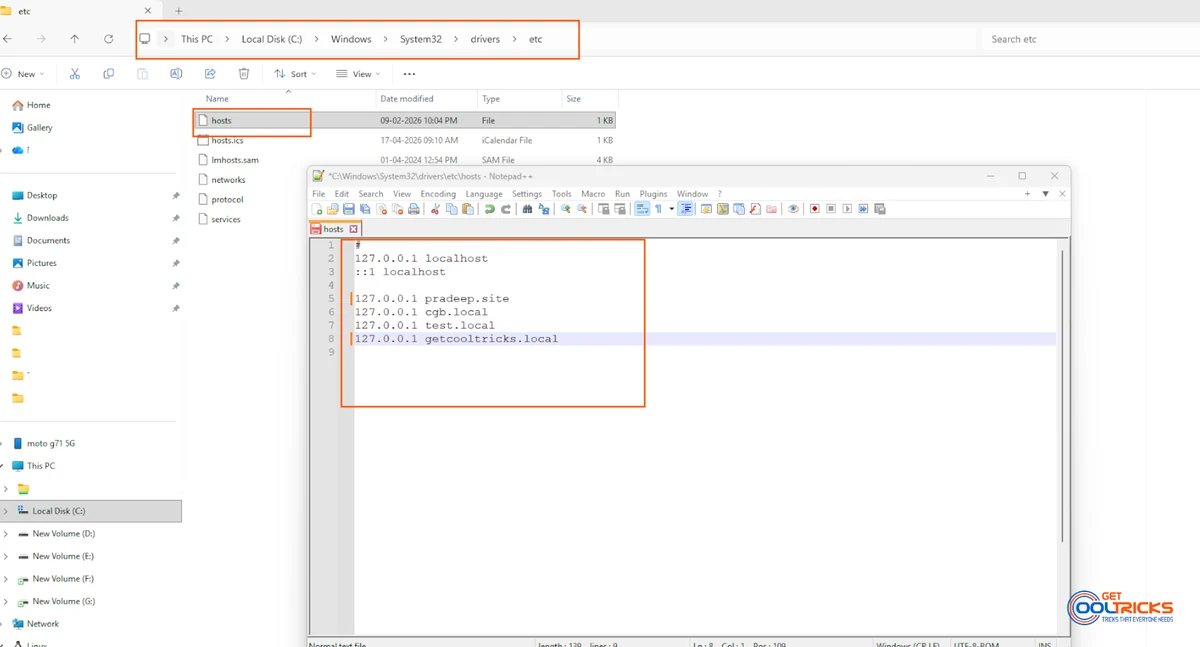
The hosts file is stored in the following location:
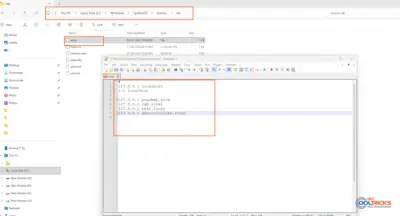
C:\Windows\System32\drivers\etc\hostsIt doesn’t have a file extension, and you’ll need administrator permission to edit it. Right-click on the file and edit with your favourite editor.
How Does It Work?
When you enter a website address like example.com, Windows first looks for a matching entry in the hosts file.
- If a match is found, Windows uses the IP address from the file.
- If no match exists, Windows queries your configured DNS server.
This allows you to override DNS for your own computer without affecting anyone else.
How to Edit the Hosts File
- Open Notepad as Administrator.
- Click File → Open.
- Browse to:
C:\Windows\System32\drivers\etc\ - Change the file type to All Files (.).
- Open the hosts file.
- Add your entries and save the file.
If Windows won’t let you save the file, make sure Notepad was opened with administrator privileges.
Common Uses
Block a Website
To block Facebook on your computer, add:
127.0.0.1 facebook.com
127.0.0.1 www.facebook.com
Since the domain points back to your own computer, the website won’t load.
Preview a Website Before Changing DNS
This is one of the most useful features for website owners.
Suppose you’ve moved your website to a new hosting provider. Instead of changing your domain’s DNS immediately, you can point your computer to the new server using the hosts file. This lets you test everything before visitors see the new site.
Example:
192.168.1.25 example.comOnly your computer will use this mapping.
Local Development
Developers often create local domains instead of using localhost.
For example:
127.0.0.1 myproject.localThis makes local testing cleaner and easier to manage.
Flush the DNS Cache
If your changes don’t work immediately, Windows may still be using cached DNS information.
Open Command Prompt as Administrator and run:
ipconfig /flushdnsThen refresh your browser and try again.
Common Problems
Can’t save the file?
Run Notepad as Administrator.
Aren’t changes working?
Flush the DNS cache and check for any typos in the hosts file.
The file keeps changing back?
Some antivirus programs protect the hosts file and may restore it automatically.
Is It Safe to Edit the Hosts File?
Yes. The hosts file only affects your own computer, and any changes can be undone by removing the entries you added.
Just be cautious if you notice entries you didn’t create, as some malware modifies the hosts file to redirect websites or block access to security-related domains.