It’s common for users to switch display languages after installing Windows. However, sometimes Windows refuses to download or install a language pack. You may see:
- “Download failed.”
- “Failed to install.”
- Download stuck at 0%
- No error code shown
This issue usually occurs due to a corrupted update cache, Windows Update service problems, or using a single-language edition.
Here are working solutions to fix the problem.
First: Check Your Windows Edition
Before troubleshooting, confirm that you are NOT using:
Windows 10/11 Single Language edition
To check:
- Press Windows + R
- Type:
winver - Check if it says “Single Language”
If it is Single Language edition, additional language packs cannot be installed.
Fix 1: Clear Windows Update Cache (Most Common Fix)
Language packs are downloaded through Windows Update. If the update cache is corrupted, the download will fail.
Step 1: Stop Windows Update Service
- Press Windows + R
- Type:
services.msc - Find Windows Update
- Right-click → Stop
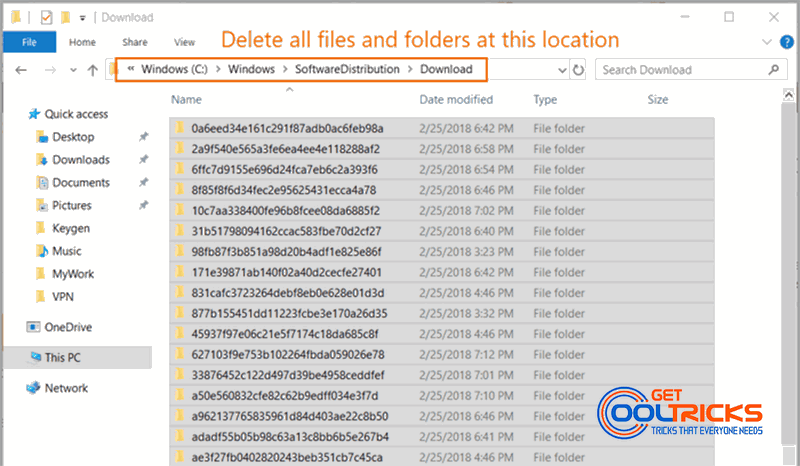
Step 2: Delete Update Cache Files
- Open File Explorer
- Go to:
C:\Windows\SoftwareDistribution\Download- Delete all files and folders inside the Download folder
Do not delete the SoftwareDistribution folder itself.
Step 3: Start Windows Update Service
- Go back to the Services window
- Find Windows Update
- Right-click it
- Click Start
Now try downloading the language pack again:
Settings → Time & Language → Language & Region → Add a language
Fix 2: Run Windows Update Troubleshooter
- Open Settings
- Go to:
- Windows 10 → Update & Security → Troubleshoot
- Windows 11 → System → Troubleshoot → Other troubleshooters
- Run Windows Update Troubleshooter
Restart the PC and try again.
Fix 3: Install Pending Windows Updates
Sometimes language packs fail if updates are pending.
- Go to Settings → Windows Update
- Click Check for updates
- Install all available updates
- Restart your computer
Then retry the language pack installation.
Fix 4: Use DISM to Repair System Files
If system files are corrupted, run:
- Open Command Prompt as Administrator
- Run:
DISM /Online /Cleanup-Image /RestoreHealthWait for it to complete. Then run:
sfc /scannowRestart your PC and try again.
When Nothing Works
If the issue persists:
- Perform a System Restore
- Or consider a Repair Install (In-place upgrade)
You can also refer to:
How to Install Windows 10
Fix Slow Windows Startup and Boot Faster in Minutes
Why This Happens
Language packs depend on:
- Windows Update service
- Update cache
- Internet connectivity
- Correct Windows edition
Most failures are caused by a corrupted update cache or disabled update services.
If Windows 10 or 11 refuses to download a language pack, the issue is usually related to Windows Update. Clearing the SoftwareDistribution cache and restarting the update service resolves the problem in most cases.
Make sure your Windows edition supports additional languages and that your system is fully updated before attempting installation again.