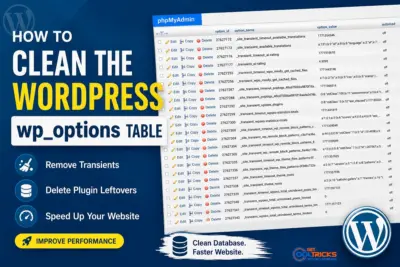
If you’ve recently opened Tools → Site Health in WordPress, you may have noticed a warning about autoloaded options or an oversized wp_options table. Even if you haven’t seen the warning, a bloated options table can quietly slow down your website and WordPress admin over time.
The wp_options table stores your website settings, plugin configurations, theme options, cached data, and temporary information that WordPress uses while loading your site. Every time you install a new plugin, it usually adds its own settings to this table.
The problem is that not every plugin cleans up after itself.
Many plugins leave their database entries behind even after they’re uninstalled. If you’ve been using WordPress for several years, you’ve probably installed and removed dozens of plugins. While the plugin files disappear, their database records often remain. Over time, these unused entries accumulate, making the wp_options table much larger than necessary.
Another common cause is temporary cache data, known as transients. These are designed to expire automatically, but some plugins don’t remove them properly, leaving hundreds or even thousands of unnecessary records in your database.
Why Does This Affect Website Speed?
Unlike many other database tables, WordPress loads a large portion of the wp_options table every time a page is requested.
That means before WordPress even starts generating your page, it has already queried this table and loaded many of its records into memory.
If the table contains unnecessary plugin settings, expired transients, or large autoloaded values, WordPress must read and process all that extra data first.
The result can be:
- Slower page generation
- Slower WordPress admin pages
- Increased memory usage
- Additional database load
- Poorer overall performance
The effect may not be noticeable on a small website, but on larger sites with many plugins, cleaning the wp_options table can make a surprising difference.
Don’t Have phpMyAdmin? Use a Plugin Instead
Not everyone has access to phpMyAdmin, especially if you’re using managed WordPress hosting.
Fortunately, you can still clean your database using plugins such as Advanced Database Cleaner or WP-Optimize.
These plugins can identify:
- Orphaned plugin options
- Expired transients
- Old revisions
- Other unnecessary database records
Before deleting anything, always review the results carefully. Some plugins intentionally keep their settings after deactivation so they can restore them if you reinstall the plugin later.
It’s also a good idea to create a full database backup before performing any cleanup.
Check Your wp_options Table Manually
If you have access to phpMyAdmin, you can inspect the table yourself.
A quick way to check its size is:
SELECT
table_name,
ROUND(((data_length + index_length)/1024/1024),2) AS size_mb
FROM information_schema.tables
WHERE table_schema = DATABASE()
AND table_name LIKE '%options';
This gives you an idea of how large your options table has become.
Find Large Autoloaded Options
One of the biggest performance issues comes from oversized autoloaded options.
Run the following query:
SELECT option_name,
LENGTH(option_value) AS size_bytes
FROM wp_options
WHERE autoload='yes'
ORDER BY size_bytes DESC
LIMIT 20;
Review the results carefully.
Large options aren’t always bad, but if you see entries belonging to plugins you’ve already removed, they’re good candidates for cleanup.
Remove Settings Left Behind by Old Plugins
This is where you’ll often recover the most space.
Suppose you previously used Rank Math but later switched to another SEO plugin.
You can first search for its database entries:
SELECT *
FROM wp_options
WHERE option_name LIKE '%rank_math%';
If you’re certain the plugin has been completely removed and you no longer need its settings, you can delete them.
DELETE FROM wp_options
WHERE option_name LIKE '%rank_math%';
The same approach works for other plugins.
For example:
SELECT *
FROM wp_options
WHERE option_name LIKE '%elementor%';
DELETE FROM wp_options
WHERE option_name LIKE '%elementor%';Always verify the results before deleting anything. Removing active plugin settings can cause unexpected issues.
Clean Up Expired Transients
Temporary transients can also build up over time.
You can list them with:
SELECT *
FROM wp_options
WHERE option_name LIKE '_transient_%';
If there are a large number of expired transients, cleaning them up can help reduce unnecessary database clutter. Delete them using the following SQL query.
DELETE FROM wp_options
WHERE option_name LIKE '_transient_%';
Check Site Health Again
Once you’ve finished cleaning the wp_options table, go back to:
Tools → Site Health
Check whether the warning about autoloaded options has disappeared or improved.
You may also notice that:
- The WordPress dashboard feels more responsive.
- Admin pages load faster.
- Database queries are reduced.
- Overall website performance improves.
Final Thoughts
The wp_options table naturally grows as your website evolves, but it shouldn’t become a storage room for plugins you removed years ago.
Spending a few minutes reviewing old plugin settings, clearing expired transients, and removing unnecessary database entries can help keep your WordPress installation healthy and responsive.
Just remember one rule before deleting anything: always create a database backup first. A careful cleanup can improve performance without affecting your website, while deleting the wrong records can cause plugins or themes to stop working properly.