Microsoft Office receives regular updates that include security patches, bug fixes, and performance improvements. These updates are enabled by default to keep your applications secure and stable.
This guide applies to:
- Office 2016
- Office 2019
- Office 2021
- Office 2024 (standalone version)
- Microsoft 365 (subscription version)
The steps are almost identical across these versions. The screenshots in this guide are based on Office 2021.
Should You Disable Office Updates?
In most cases, it is not recommended to disable updates.
Updates help:
- Fix security vulnerabilities
- Improve performance
- Ensure compatibility with Windows
If your system feels slow, you may also want to check Fix Slow Windows Startup and Boot Faster in Minutes for better overall performance.
Disable updates only if you have a specific reason.
Method 1: Disable Updates from Office Applications (Recommended)
This is the easiest and most reliable method.
Steps:
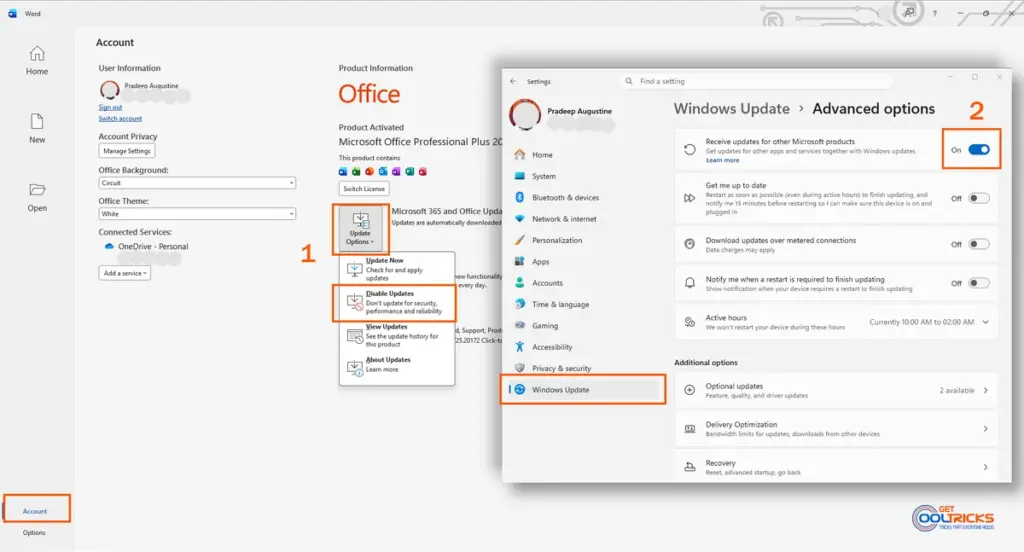
- Open any Office application (Word, Excel, etc.)
- Go to File → Account
- Under Product Information, click Update Options
- Select Disable Updates
That’s it — updates will be disabled immediately.
Depending on your system settings, you may see a User Account Control (UAC) prompt asking for permission. If prompted, click Yes. On some systems, no confirmation message is shown.
Method 2: Disable Updates from Windows Settings
Windows can also deliver updates for Microsoft products.
Steps:
- Open Settings
- Go to Windows Update
- Click Advanced options
- Turn off: Receive updates for other Microsoft products when you update Windows
This prevents Windows from automatically updating Office through system updates.
If you are facing update-related issues, you may also find it helpful to read how to fix language pack not downloading in Windows 10 & 11.
How to Enable Automatic Updates Again
To turn updates back on:
- Open any Office application
- Go to File → Account
- Click Update Options
- Select Enable Updates
You can also click Update Now to manually check for updates.
Important Notes
- These steps apply to Click-to-Run installations
- Office 2024 and earlier standalone versions receive security updates only
- Microsoft 365 receives continuous feature updates
- The interface may vary slightly depending on your version
- In managed (work/school) systems, update settings may be restricted
When Should You Disable Updates?
You may consider disabling updates if:
- You are on a limited or metered internet connection
- Your system has low hardware resources
- You are troubleshooting compatibility issues
Always remember to enable updates again to keep your system secure.
Final Thoughts
Managing Microsoft Office updates is simple and can be done directly from any Office application. While disabling updates can be useful in certain situations, keeping them enabled ensures better security and long-term stability.