If you’ve ever copied photos from an iPhone to your Windows PC, you’ve probably seen files with the ‘.HEIC‘ extension. And sometimes they just don’t open, or you can’t upload them anywhere.
The quick fix is to convert them to JPG. Here are a couple of simple ways to do it.
Method 1: Just Save It as JPG (If It Opens)
First, try this—it’s the easiest.
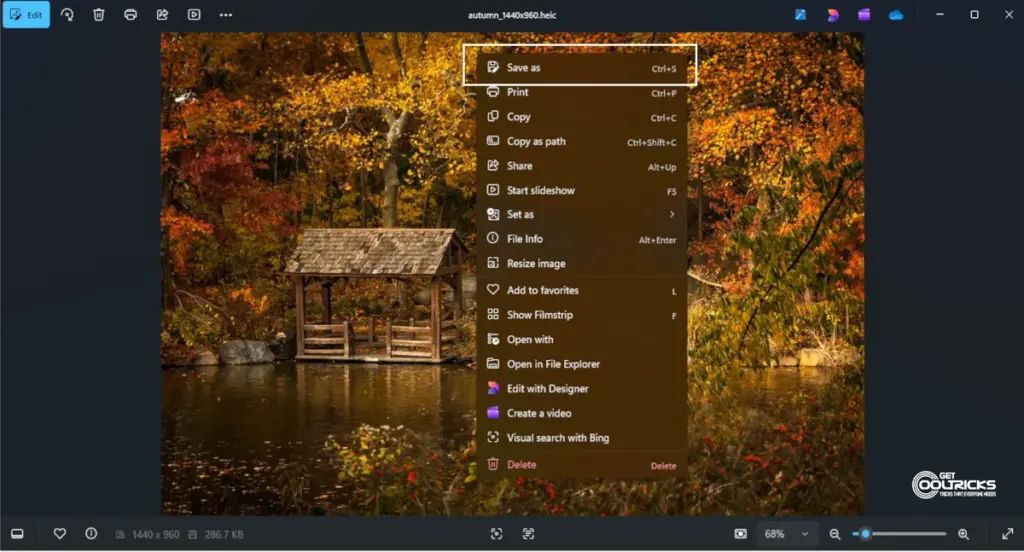
- Double-click the HEIC file
- If it opens in the Photos app, you’re good
- Click the three dots (or right-click) → Save as
- Choose JPG
That’s it. No need to install anything.
If the file doesn’t open, move to the next method.
Method 2: Use GIMP (Free and Works Offline)
If your PC refuses to open HEIC files, use GIMP.
It’s free, open-source, and doesn’t need any setup beyond installation.
Steps:
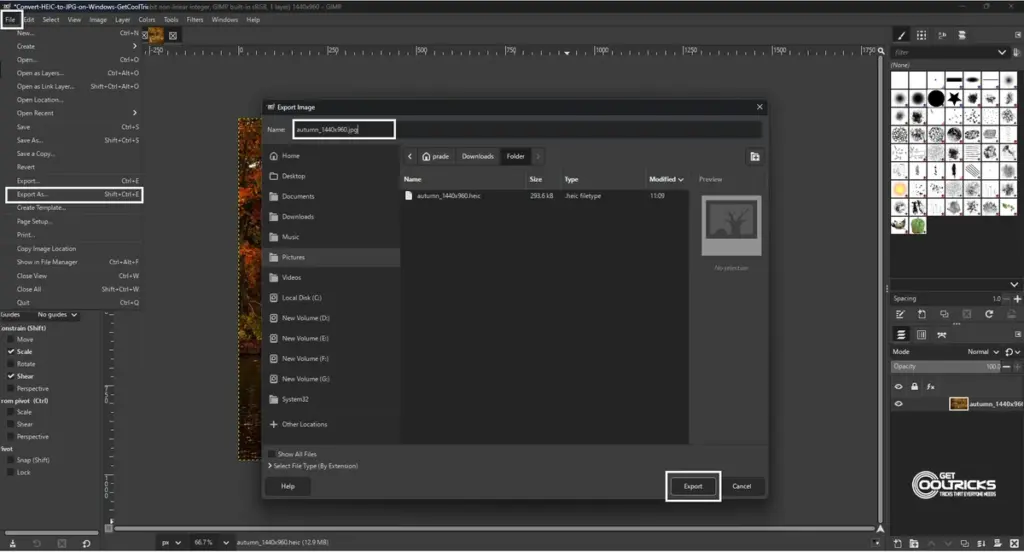
- Open GIMP
- Click File → Open and select your HEIC image
- Then go to File → Export As
- Choose JPG and save
Works every time.
Method 3: Use an Online Converter (Optional)
If you don’t want to install anything:
- Upload your HEIC file to any online converter
- Download the JPG version
It’s quick, but don’t use this for personal photos.
Why HEIC Files Exist (Short Version)
iPhones use HEIC because it keeps image quality high while reducing file size. It’s actually better than JPG in many cases—but compatibility is still catching up.
Final Thoughts
If HEIC files open on your PC, just save them as JPG, and you’re done. If not, GIMP is the easiest fallback. Nothing complicated here.