Accidentally deleted a file? Or saved over something important and now need the older version back?
Before trying any recovery software, check this built-in Windows feature. If it was enabled earlier, you can restore previous versions of files or folders in just a few clicks.
This works on Windows 10 and Windows 11 (and also Windows 8 with slightly different navigation).
What This Feature Actually Does
Windows can automatically save snapshots of your files using System Protection (Restore Points).
These snapshots show up as Previous Versions, which you can use to:
- Recover deleted files
- Restore older versions of files
- Undo unwanted changes
Important: This only works if System Protection was already enabled and restore points were created earlier.
Enable System Protection (Do This First)
If you haven’t set this up yet, do this once:
Step 1: Open System Protection
You can open System Protection in a few different ways:
- Search for “Create a restore point” from the Start menu and open it (fastest method)
Or via Settings (Windows 10 & 11):
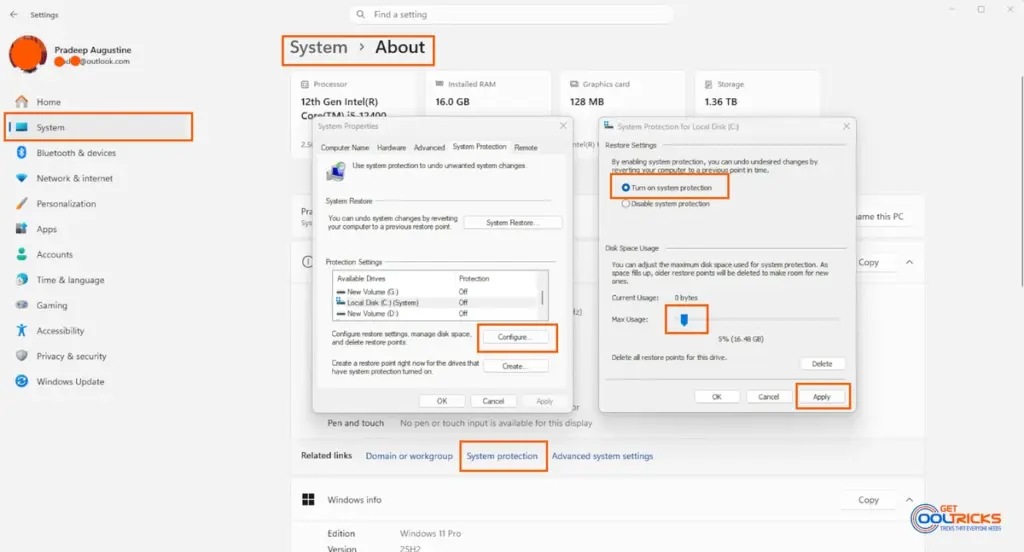
- Start menu → Settings → System → About
- Click System protection (under Related links)
Or via Control Panel:
- Control Panel → System → System Protection
(Windows 8: Control Panel → System and Security → System → System Protection)
Step 2: Turn It On
- Select your main drive (usually C:)
- Click Configure
- Choose Turn on system protection
- Set disk usage to around 5–10%
- Click OK
Note: System Protection may not be available for all drives. It usually works best on the main system drive (C:), and may be unavailable on other drives depending on the file system and system settings.
Step 3: Create a Restore Point
- Click Create
- Give it a name (example: Before installing the app)
- Click Create
That’s it. Windows will now automatically keep restore points.
How to Recover Files Using Previous Versions
If something gets deleted or overwritten:
Step 1: Go to the Folder
Open the folder where the file was located.
Step 2: Open Properties
- Right-click the folder
- Click Properties
Step 3: Open Previous Versions
- Go to the Previous Versions tab
- You’ll see available versions based on restore points
Note: If nothing appears here, it means no restore points were created for that drive at the time. You’ll need to enable System Protection and create a restore point first.
Step 4: Restore or Copy
- Click Open to preview the folder
- Copy the file you need manually (recommended)
- Or click Restore to revert the entire folder
A Few Things to Know
- This works mainly on internal drives
- Restore points are not full backups—they don’t capture everything
- Windows deletes older restore points when space runs out
- It’s a good habit to create one before installing apps or drivers
Note: The “Previous Versions” tab shows data only if Windows has saved snapshots earlier. These can come from Restore Points or File History.
If you don’t see any previous versions, you can also enable File History here:
Control Panel → All Control Panel Items → File History
File History is more reliable for recovering personal files, such as documents and photos.
Does This Work on All Windows Versions?
- Windows 11 / Windows 10: Works exactly as shown
- Windows 8: Same feature, found via Control Panel
- Windows 7: Also supported
Final Thoughts
This is one of those features you don’t notice until you actually need it. But when you do, it can save you from losing important files.
If you haven’t enabled System Protection yet, it’s worth doing now—it takes less than a minute.