Google Custom Search, now officially called Programmable Search Engine, allows you to use Google’s search technology on your website. It delivers more accurate and relevant results compared to the default WordPress search.
This guide is based on the latest interface of Google Programmable Search and shows how to create a search engine and integrate it into your WordPress site using both modern block (FSE) themes and classic methods. A clean URL structure also improves usability. You can learn how to change the permalink structure in WordPress if needed.
What Is Google Programmable Search Engine?
Google Programmable Search Engine (formerly Custom Search Engine or CSE) lets you:
- Search only your website content
- Improve search relevance
- Customize layout and appearance
- Optionally monetize search results with AdSense
Step 1: Create a Google Programmable Search Engine
- Go to: https://programmablesearchengine.google.com/
- Sign in with your Google account
- Click Create a search engine
- Enter the required details:
- Search engine name
- Website URL
- Click the Add button
The Create button will remain disabled until the site is added. - Click Create
Note: You may be asked to complete a CAPTCHA during this process. This is part of account verification and not a search engine setting.
Step 2: Copy the Initial Code
After creating the search engine, a confirmation screen appears and Google provides the embed code immediately:
<script async src="https://cse.google.com/cse.js?cx=YOUR_ID"></script>
<div class="gcse-search"></div>
This can be used for a basic setup. For better control and structure, continue with layout customization.
Step 3: Choose the Layout
Go to: Look and feel → Layout
You will see multiple layout options such as:
- Overlay
- Two-page
- Full-width
- Two-column
- Compact
- Results only
- Google-hosted
For most WordPress websites, the recommended option is Two-page layout, as it separates the search box and results cleanly.
Step 4: Get the Search Box and Results Code
Select Two-page and click Get Code
You will receive two separate code blocks.
Search box code:
<script async src="https://cse.google.com/cse.js?cx=YOUR_ID"></script>
<div class="gcse-searchbox-only"></div>
Search results code:
<script async src="https://cse.google.com/cse.js?cx=YOUR_ID"></script>
<div class="gcse-searchresults-only"></div>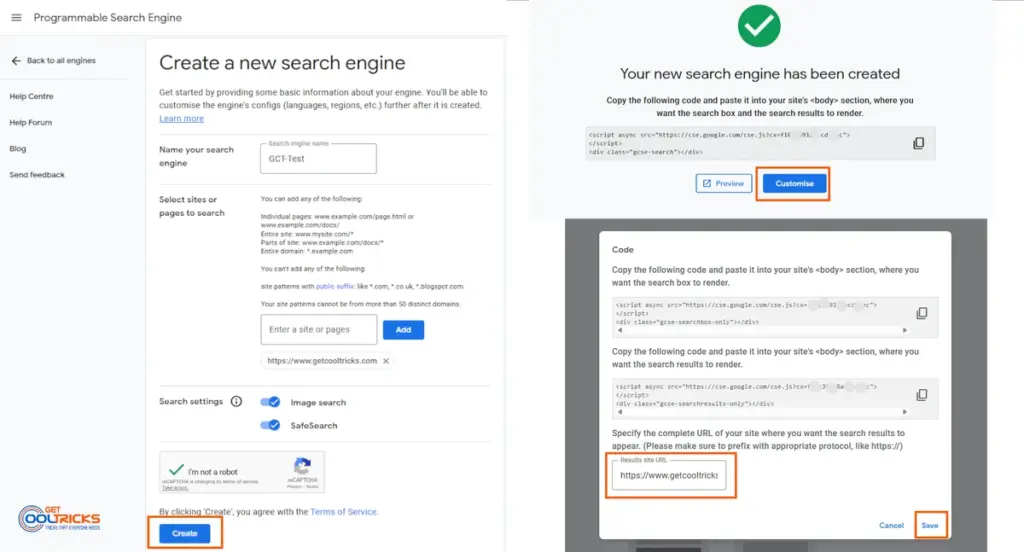
Step 5: Set the Results Page URL
In the same layout popup, you will see the field:
Results use URL
Example:
https://example.com/searchImportant:
- This must be a page on your website
- It should match the page where you place the search results code
Step 6: Customize the Look and Feel (Optional)
Google Programmable Search Engine allows you to customize how the search box and results appear on your website.
Go to:
Look and feel → Customize
You can modify:
- Search box appearance
- Result title, URL, and snippet styles
- Fonts and colors
- Layout elements like promotions and branding
A live preview is available, showing:
- Search box
- Search results
- Promotions
You can also:
- Enable or disable thumbnails in search results
- Adjust branding and layout behavior
After making changes, click Save to apply them.
Note: Changes are applied automatically to your site. You do not need to update the embed code.
Step 7: Add Search to WordPress (Block / FSE Themes)
Add the search box
- Go to Appearance → Editor
- Open your header or template part
- Add a Custom HTML block
- Paste the search box code
Add the search results page
- Go to Pages → Add New
- Create a page (for example, “Search”)
- Add a Custom HTML block
- Paste the search results code
- Publish the page
Make sure the page URL matches the Results URL configured earlier.
Step 8: Add Search to Classic Themes (Optional)
Widget method
- Go to Appearance → Widgets
- Add a Custom HTML widget
- Paste the search box code
Advanced method
You can modify the searchform.php file to replace the default WordPress search. This is recommended only for advanced users. If you want more control over theme functionality, you can learn how to build a custom WordPress functions plugin.
Important Notes
- Always ensure the results page URL matches your configuration
- You do not need to update the code after making changes in the dashboard
- Avoid using overlay layout if you want a traditional search experience
- Test the search functionality after setup
When Should You Use Google Custom Search?
Google Custom Search is useful when:
- Your site has a large amount of content
- Default WordPress search is not accurate
- You want better relevance and filtering
If you plan to monetize search results, you can also learn how to implement Google AdSense on your website.
Final Thoughts
Google Programmable Search Engine provides a simple and effective way to improve your website’s search experience. With the modern WordPress editor, integrating it is straightforward and does not require additional plugins.