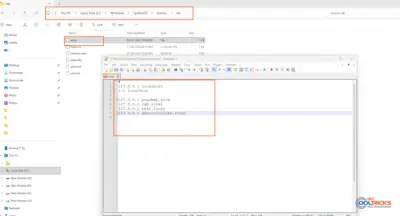
Some older printers and hardware devices still rely on unsigned drivers to work properly. While signed drivers install normally on all Windows versions, newer ones like Windows 8 have Driver Signature Enforcement on by default. When it is enabled, you cannot install the drivers that are not digitally signed. If you believe that the driver comes from a source you trust, you can disable the driver signature enforcement temporarily. You usually won’t run into this unless you’re dealing with older hardware.
The steps are similar on Windows 8, 10, and 11.
Important: Only install drivers from a trusted source. Installing drivers from unknown sources may make your system less secure.
What Is Driver Signature Enforcement?
When the Driver Signature Enforcement is enabled, Windows only allows digitally signed drivers to get installed. This helps in the system security and stability. Some old hardware devices may not have signed drivers.
To install unsigned drivers, Windows needs to start in Advanced mode. Don’t worry, this only takes a couple of minutes.
Disable Driver Signature Enforcement Temporarily
The steps are similar in Windows 8, 10, and 11.
Step 1: Boot into Advanced Startup
For Windows 10 and Windows 11:
- Open Settings
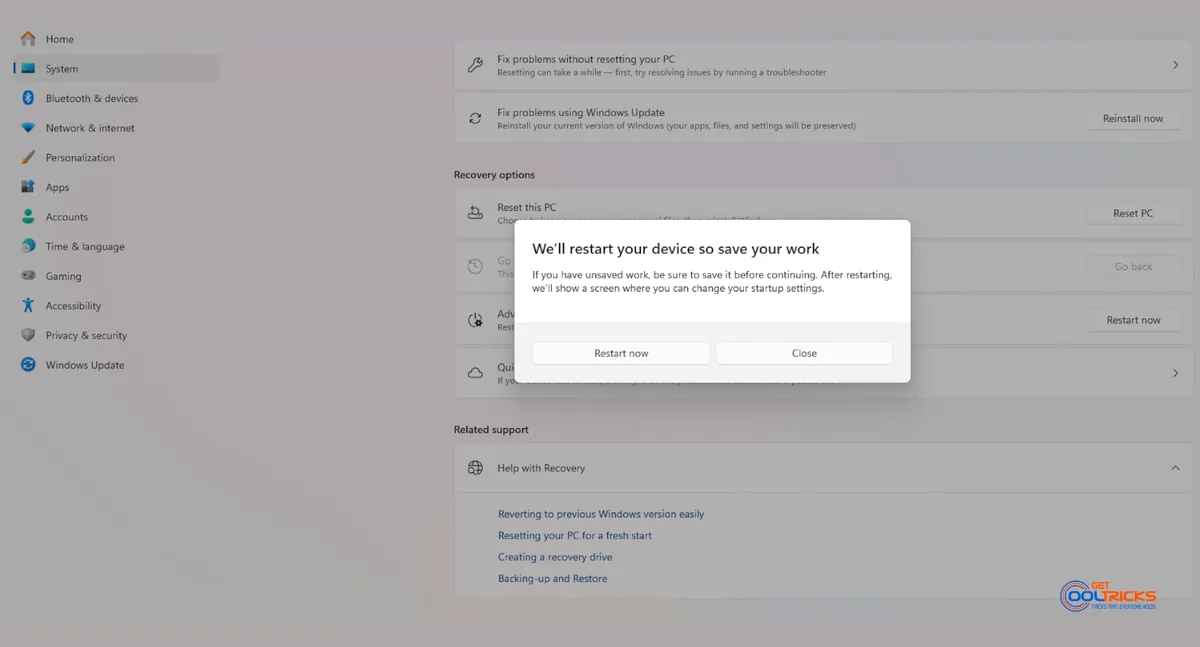
- Go to System → Recovery
- Under Advanced startup, click Restart now
For Windows 8 / 8.1:
- Open Settings
- Go to Update and Recovery → Recovery
- Under Advanced startup, click Restart now
Your computer will now restart into the Advanced Startup menu.
Step 2: Navigate to Startup Settings
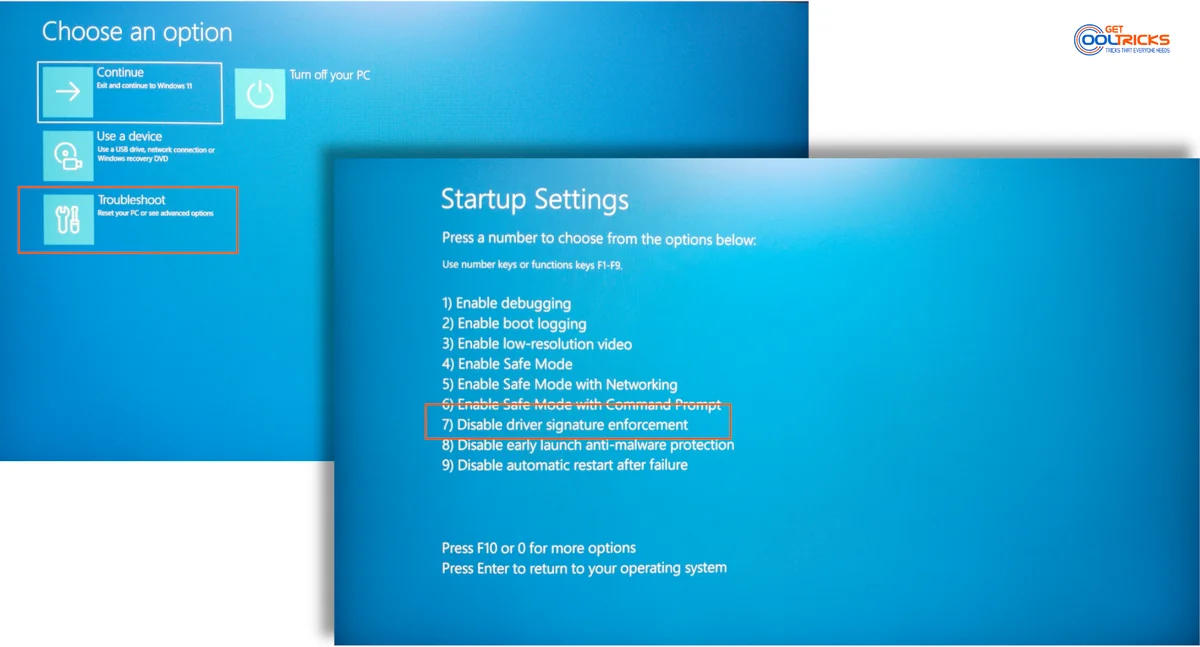
After restarting, Select Troubleshoot → Advanced options. Now, select Startup Settings and click Restart.
Your system will restart and show startup options.
Step 3: Disable Driver Signature Enforcement
When the Startup Settings screen appears, Press 7 on your keyboard or Press F7 to Disable driver signature enforcement.
Once you select 7 or F7, Windows will boot with signature enforcement disabled temporarily.
Step 4: Install the Unsigned Driver
Once Windows boots, run the driver installer. A warning message will appear. Ignore that and click Install anyway to proceed.
The unsigned driver will get installed successfully.
Important Notes
- This method disables driver signature enforcement for the current session only.
- After restarting your PC, driver signature enforcement will be enabled automatically.
- If you need to install another unsigned driver later, repeat the same steps above.
- Always download drivers from manufacturers.\
Final Thoughts
Driver Signature Enforcement is there to protect your system, but it can sometimes block older hardware from working. By disabling this feature through Advanced Startup, you can install unsigned drivers safely on Windows 8, 10, and 11.
Make sure you only install drivers from trusted sources. Once the installation is complete, restart your system to restore full protection.