Jellyfin works well for streaming movies and other media across devices connected to your home network. But what if you want to watch something when you’re away from home?
You can access your Jellyfin server remotely using Tailscale. It connects your devices through a private network, allowing you to reach your home Jellyfin server without opening its port to the public internet.
In this guide, we’ll show you how to access a Jellyfin server running on a Windows PC from an iPhone using Tailscale. We’ll also test the connection using mobile data to make sure it works outside the home network.
What You Need
Before getting started, make sure you have:
- A working Jellyfin server.
- Tailscale installed on the device running Jellyfin.
- Tailscale installed on the device you want to use remotely.
- Both devices signed in to the same Tailscale network.
Jellyfin can run on different platforms, including Windows, Linux, NAS devices, and Android. If you want to use an old Android phone as your Jellyfin server, see our guide on how to install Jellyfin on Android using Termux.
For this tutorial, we’re using a Windows PC as the Jellyfin server and an iPhone as the remote device.
1. Connect Your Devices to Tailscale
First, install Tailscale on both the computer running Jellyfin and the device you’ll use to access it remotely.
Sign in to Tailscale using the same account on both devices. Once signed in, enable the connection on each device.
If you haven’t set up Tailscale before, follow our guide: What Is Tailscale? How to Set It Up?. It covers installation and connecting your devices.
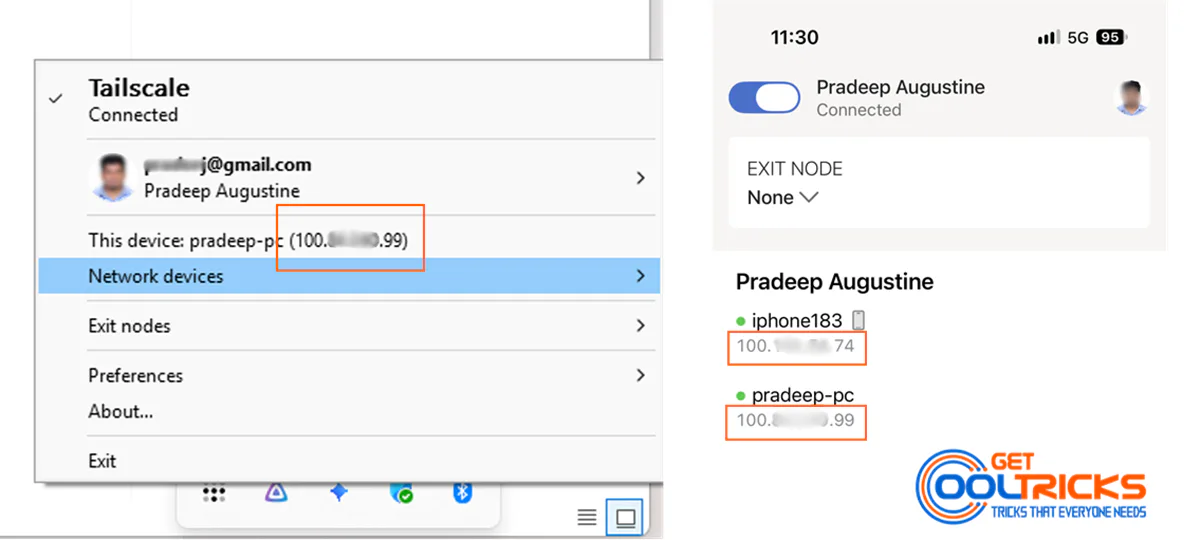
After connecting, open the Tailscale device list and check that both your Windows PC and iPhone appear as connected.
You don’t need to be connected to the same Wi-Fi network. Tailscale creates the private connection between your devices, even when they’re using different internet connections.
2. Find Your Windows PC’s Tailscale IP Address
Next, find the Tailscale IP address assigned to the Windows PC running Jellyfin.
You can find it in the Tailscale app or the administration console. Tailscale IP addresses generally start with 100..
For example:
100.x.x.x
Use the actual IP address shown for your Windows PC. Make sure you don’t accidentally use its local network IP address, which is usually something like 192.168.1.x.
3. Connect to Jellyfin from Your iPhone
Now that both devices are connected to Tailscale, you can access Jellyfin from your iPhone.
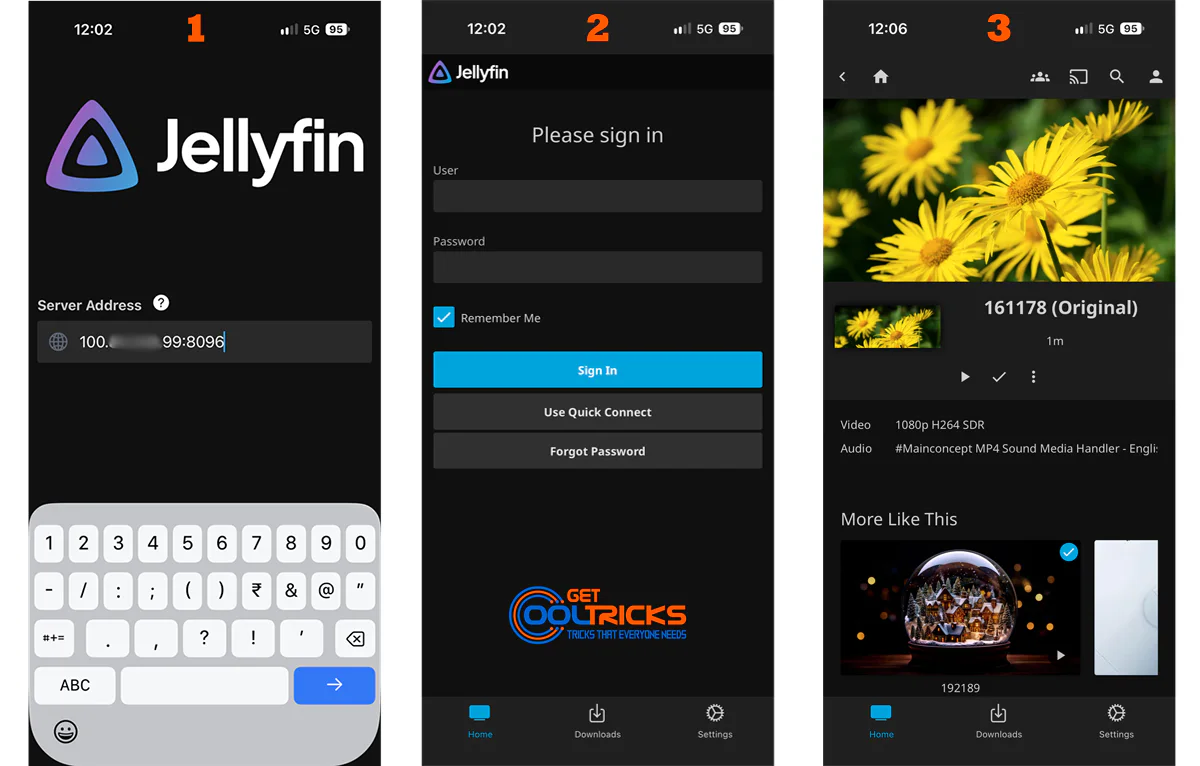
Open the Jellyfin app on your iPhone. When asked for the server address, enter your Windows PC’s Tailscale IP address followed by Jellyfin’s default port, 8096.
For example:
http://100.x.x.x:8096
Replace the example IP with the address assigned to your Windows PC.
Tap to connect. The Jellyfin login screen should appear. Sign in using your existing Jellyfin username and password.
Once connected, your media library should be available in the app just as it is when you’re at home.
4. Test Jellyfin Using Mobile Data
To make sure the connection works outside your home network, we tested it using an iPhone.
We turned off Wi-Fi on the iPhone and switched to mobile data. With Tailscale still connected, we opened the Jellyfin app and accessed the Windows PC using its Tailscale IP address.
The Jellyfin server continued running on the Windows PC, and we were able to browse the media library and play content on the iPhone over the mobile network.
This confirms that you can access your home Jellyfin server even when your phone isn’t connected to your home Wi-Fi.
Keep in mind that remote streaming quality depends on your home internet upload speed, mobile network connection, and the server’s ability to stream or transcode the video.
Troubleshooting
If you can’t connect to Jellyfin, check the following:
- Both devices should be connected to Tailscale: Open Tailscale on your Windows PC and iPhone and make sure the connection is active.
- Check the server IP address: Use the Tailscale IP assigned to the Windows PC, not its local network address.
- Check the Jellyfin port: The default HTTP port is
8096. Make sure you’re using the correct port in the server address. - Check Windows Firewall: Windows Firewall may block incoming connections to Jellyfin. Make sure the necessary connection is allowed.
- Make sure Jellyfin is running: Tailscale can connect your devices, but Jellyfin must still be running and listening for connections through the Tailscale network interface.
Conclusion
Accessing Jellyfin outside your home network doesn’t have to involve complicated network configurations. With Tailscale installed on your Jellyfin server and remote device, you can connect to your media library without exposing Jellyfin directly to the public internet.
Once configured, you can use the same method from your phone, laptop, or other supported device whenever you want to access your home media library.