Tailscale lets you connect your computers, smartphones, and servers through a secure private network over the internet. Once connected, you can access services running on one device from another, even when they are connected to completely different networks.
For example, you can access your home computer while travelling, connect to a media server, or transfer files between your phone and PC without relying on cloud storage.
Tailscale supports Windows, macOS, Linux, Android, iOS, and several other platforms. In this guide, we’ll explain how it works and demonstrate how to connect a Windows PC and an iPhone. The same basic setup process applies to other supported devices.
What Is Tailscale and How Does It Work?
Tailscale is a networking application built on WireGuard, a modern protocol used to create encrypted network connections.
Normally, accessing a computer or server from outside your home network can involve public IP addresses, port forwarding, and router configuration. Tailscale simplifies this by creating a private network between your devices.
After installing Tailscale, sign in on each device using the same account. Your devices will then join a private network called a tailnet.
Each connected device receives a Tailscale IP address, which you can use to access services running on it. Tailscale automatically handles the connection between devices, attempting a direct connection first and using relay servers when necessary.
What Can You Do With Tailscale?
Tailscale is useful in several everyday situations:
- Remote access: Connect to your home or office computer from another location.
- Media streaming: Access a self-hosted media server such as Jellyfin while away from home.
- File transfers: Send files between your connected devices using Taildrop.
- Home servers: Access applications and services running on a home server or VPS.
- Private networking: Connect devices without exposing their services directly to the public internet.
For example, if you run Jellyfin on a computer at home, you can use Tailscale to access your media library from your phone or laptop while travelling.
How to Set Up Tailscale
Let’s connect two devices using Tailscale. We’ll use a Windows PC and an iPhone for this demonstration.
Tailscale is also available for Android, Linux, macOS, and other supported platforms. You can find the appropriate application for your device on the Tailscale download page.
Step 1: Create a Tailscale Account
Visit Tailscale and create an account using one of the supported sign-in methods.
You’ll use the same account to connect all the devices you want to add to your private network.
Step 2: Install Tailscale on Windows
Visit the Tailscale download page and download the Windows installer.
Run the installer and follow the instructions to complete the installation.
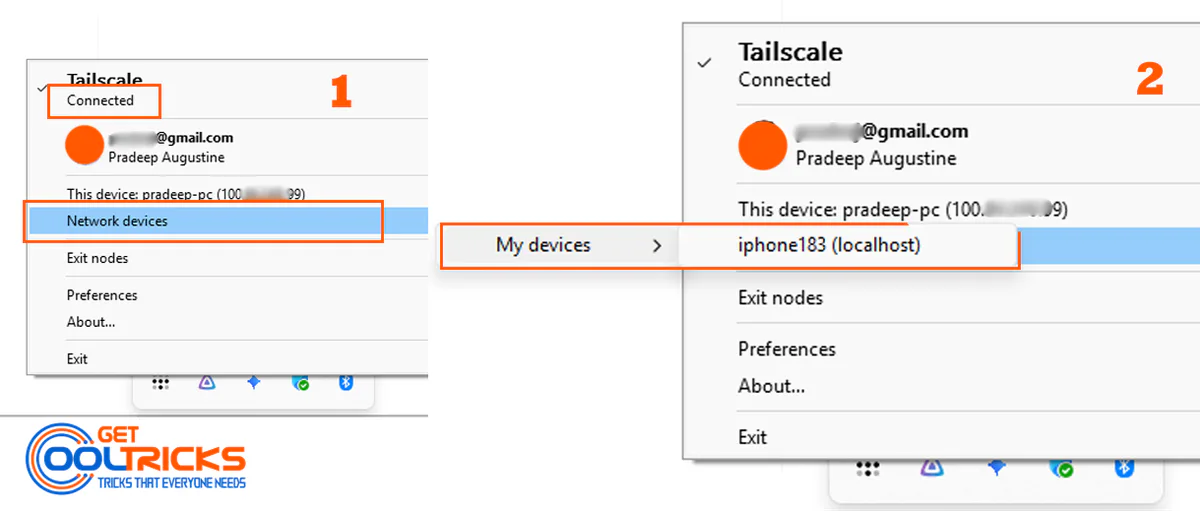
After installation, Tailscale runs in the Windows system tray near the clock. If you don’t see its icon, click the upward arrow to view hidden icons.
Click the Tailscale icon to view its connection options. Select the login option and sign in using your Tailscale account when prompted by your browser.
Once authenticated, your Windows computer will be connected to your Tailnet.
Step 3: Install Tailscale on iPhone
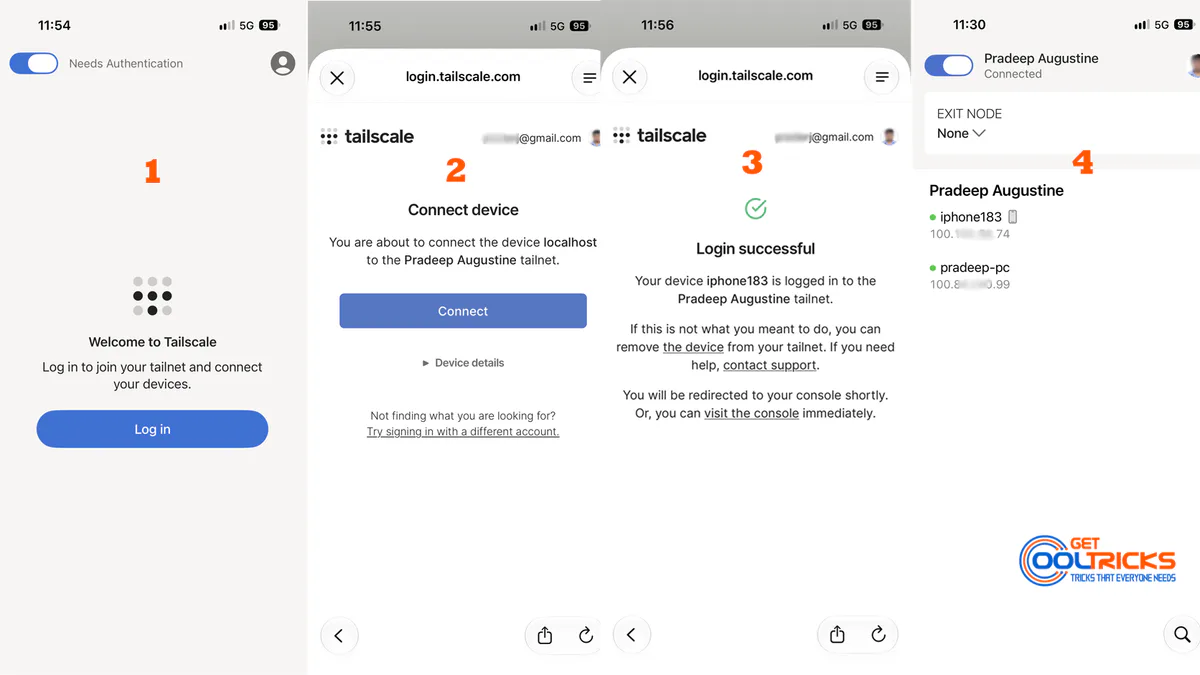
Open the App Store and search for Tailscale. Install the application and open it.
Select Get Started and allow the VPN configuration permission when prompted. This permission is required for Tailscale to establish its network connection.
Sign in using the same account you used on your Windows PC and enable the connection.
Step 4: Check Your Connected Devices
Once both devices are connected, they should appear in your Tailscale device list.
Open the Tailscale administration console:
The device list displays the computers and phones connected to your private network, along with their Tailscale IP addresses.
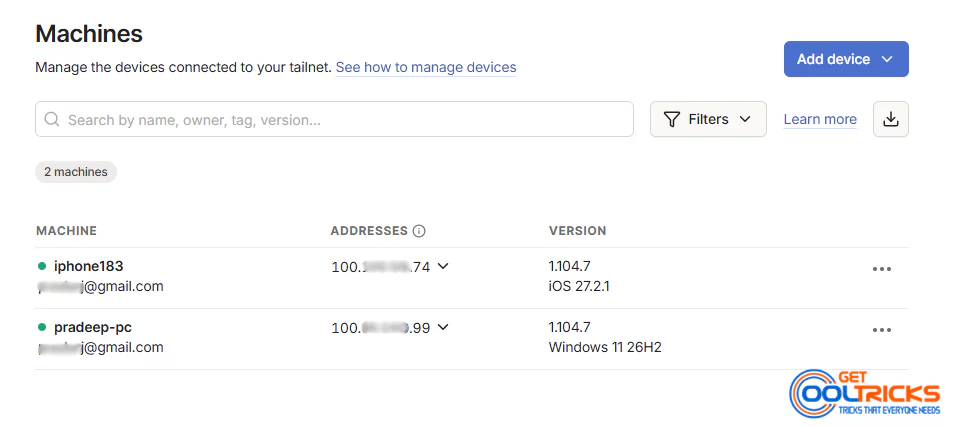
Each device receives a private IP address, usually starting with 100.. You can use this address to access services running on another connected device.
For example, if a web application is running on your Windows PC on port 8080, you can try accessing it from your iPhone using:
http://100.x.x.x:8080
Replace the example address with your Windows PC’s actual Tailscale IP address. The application must be running and configured to accept connections, and its firewall must allow the traffic.
Transfer Files Between Devices Using Taildrop
Tailscale also includes a feature called Taildrop, which allows you to transfer files between your connected devices.
For example, you can send photographs or documents from your iPhone to your Windows PC without first uploading them to a cloud storage service.
Both devices must be connected to Tailscale, and Taildrop must be enabled for your network.
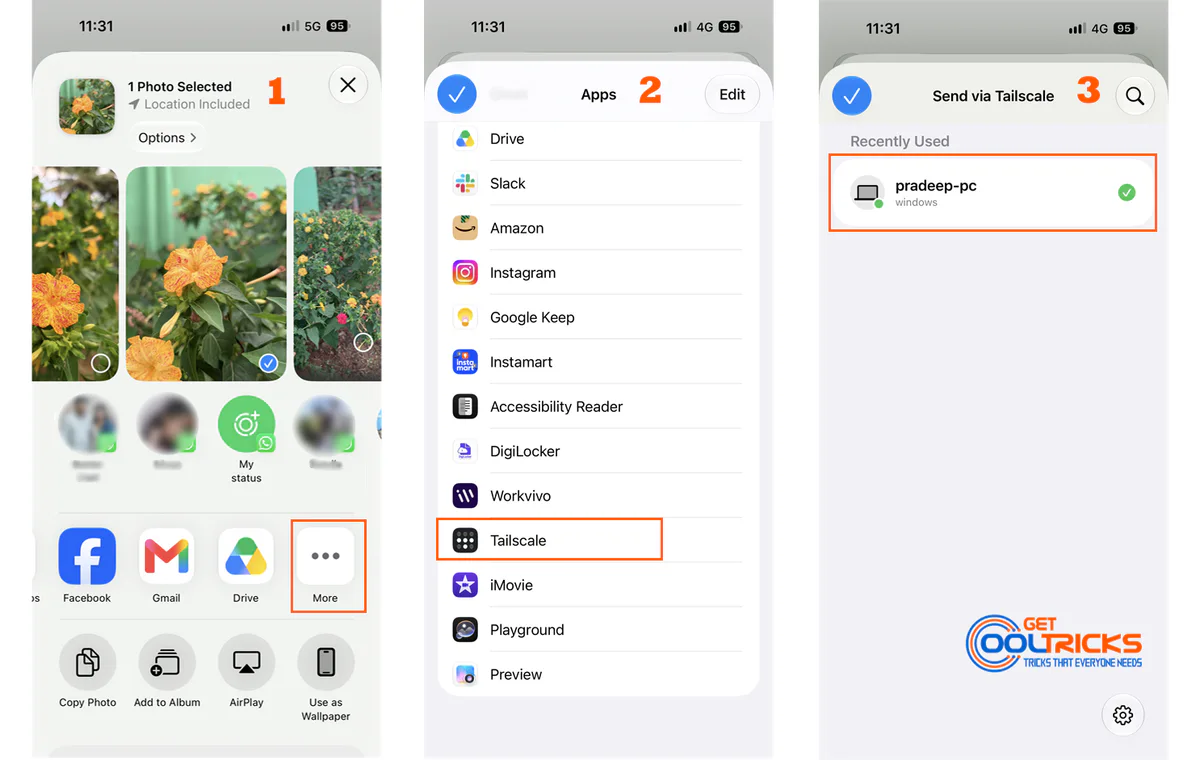
To send a file, select it on your iPhone and use the Share option to send it through Tailscale. On Windows, accept the incoming transfer if prompted.
We tested this by sending a file from an iPhone to a Windows PC. The received file was saved in the Windows Downloads folder.
Conclusion
Tailscale makes it easier to connect your computers, smartphones, and servers through a private network. You don’t need advanced networking knowledge or complicated router configurations to get started.
Whether you want to access your home computer remotely, connect to a media server, or transfer files between devices, it provides a practical way to keep your devices connected.
Start by connecting two devices and explore other possibilities as your requirements grow.